An 8K IPTV Player can help you organize and watch internet-based television content on a compatible streaming device, Smart TV, computer, or mobile device. However, choosing the right application involves more than finding an app with an attractive interface or an 8K label.
You also need to understand playlist compatibility, device requirements, video resolution, and the difference between an IPTV application and an IPTV subscription.
For viewers exploring streaming options, Strong 8K provides an additional point of reference when evaluating device compatibility and IPTV access. This guide explains the essential features to look for, how to configure common IPTV login formats, and what you actually need for 8K playback.
Quick Answer: An 8K IPTV Player is playback software that can organize and display IPTV streams when supplied with a compatible source. The player itself does not guarantee 8K content. Your provider, video source, application, streaming hardware, television, and internet connection must all support the required playback quality.
Table of Contents
What Is an 8K IPTV Player?
An 8K IPTV Player is a software application designed to receive, organize, and play television streams delivered over an internet connection. Depending on the application, it may support live television, video-on-demand (VOD), electronic program guides, favorites, and different playlist formats.
The term does not describe one universal application. Several developers use similar naming, and their products can have different features, supported devices, and login requirements.
IPTV Player vs. IPTV Subscription
An IPTV player and an IPTV subscription serve different purposes.
An IPTV player provides the software interface used to access compatible streaming sources. An IPTV provider supplies the content access, playlist, or account credentials required to load the available channels and media.
Many standalone IPTV applications come without channels or subscriptions. For example, MIRA Player’s documentation explains that users must add their own M3U playlist or Xtream Codes login. MIRA Player+1
Component
Main purpose
IPTV Player
Loads and plays compatible IPTV streams
IPTV Provider
Supplies content access and connection details
M3U Playlist
Provides a playlist containing stream entries
Xtream Codes Login
Uses a server address, username, and password
Streaming Device
Processes the stream and sends video to the display
Television
Displays the resulting picture
This distinction matters when choosing an application. Installing a player does not automatically activate an IPTV subscription.
What Does 8K Actually Mean?
8K refers to an ultra-high-definition video resolution of 7,680 × 4,320 pixels. This represents four times as many pixels as 4K UHD, which uses 3,840 × 2,160 pixels. The International Telecommunication Union (ITU) recognizes these resolutions in its television standards. ITU+1
The following table illustrates the difference.
Resolution
Approximate pixel dimensions
Total pixels
HD 1080p
1,920 × 1,080
2.07 million
4K UHD
3,840 × 2,160
8.29 million
8K UHD
7,680 × 4,320
33.18 million
An application marketed as an 8K IPTV Player does not necessarily deliver 8K video. It may simply use 8K in its name or support a particular type of streaming hardware.
Always check the actual resolution of the content and the application’s technical specifications.
What Should You Look for in an IPTV Player?
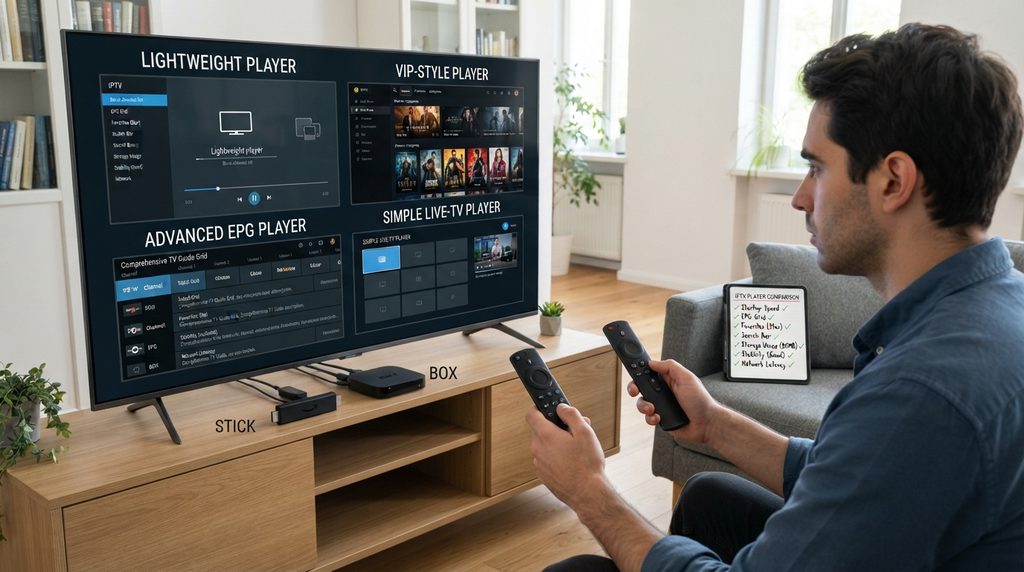
The best IPTV player depends on your device, preferred content, available login format, and desired playback features. Rather than choosing an application based entirely on its name, compare its practical capabilities.
Playlist and Login Compatibility
Start by checking which connection methods the player supports.
The two common options are:
M3U and M3U8 playlists
These use a playlist URL or file containing references to available streams. Some applications also support a separate electronic program guide (EPG) address.
Xtream Codes login
This normally requires three pieces of information supplied by the provider:
Server or portal URL.
Username.
Password.
These connection methods are not interchangeable. An application must support the format provided by your IPTV service.
Theia Player and MIRA Player both document these connection options in their setup guidance. MIRA Player+1
Device Support and Playback Features
Before installing an application, check whether it supports your operating system and device.
Useful features may include:
Feature
Why it matters
M3U/M3U8 support
Allows compatible playlist imports
Xtream Codes support
Makes account configuration easier
EPG integration
Displays program schedules
Favorites
Organizes frequently watched channels
Search
Helps locate channels, films, and series
VOD organization
Makes on-demand content easier to browse
Subtitle support
Improves accessibility and viewing options
Playback controls
Provides navigation and stream management
Not every application offers all these capabilities. Check the developer’s documentation before installation.
Privacy, Security, and App Sources
An IPTV player may request access to network connections, local files, or other device functions. Review its permissions and privacy information before providing account credentials.
For Android TV and Google TV, the Google Play Store provides the standard application installation process. Android TV Help+1
Google Play Protect also checks applications, including applications installed from sources outside Google Play. Google recommends keeping this protection enabled. Android Help
For a safer installation:
Identify the application developer.
Check the official application listing or developer website.
Review permissions and privacy information.
Avoid suspicious download links and unofficial APK files.
Keep the application and device software updated.
Never share your IPTV username, password, or device credentials with an untrusted website.
An installation warning should be investigated rather than automatically bypassed.
How to Set Up an IPTV Player
The exact configuration process depends on the application and device. However, most standalone IPTV players follow a similar workflow.
Prepare Your Device and Login Details
Before starting, make sure you have:
A compatible television, streaming device, phone, tablet, or computer.
A stable internet connection.
An IPTV player compatible with your operating system.
An authorized M3U playlist or Xtream Codes login.
Any additional EPG information required by the application.
Download the application from its official distribution channel whenever possible.
Add an M3U Playlist
An M3U playlist is a common way to load IPTV stream information into a compatible application.
Follow these general steps:
Open your installed IPTV player.
Navigate to the section called Add Playlist, Add Source, or a similar option.
Select the M3U playlist option.
Enter the playlist URL supplied by your provider, or import a supported playlist file.
Add an EPG address if your provider supplies one and the application supports it.
Save the configuration.
Allow the application to process the playlist.
Open the live TV section and test a channel.
The application interface may use different names for these options.
A successful playlist import does not necessarily mean every channel will play. Stream availability and playback depend on the source, account conditions, device, and network. MIRA Player
Add Xtream Codes Credentials
Some IPTV services provide account information through an Xtream Codes-compatible connection.
To configure this type of login:
Open the IPTV application.
Choose Xtream Codes API, XC Login, or the equivalent option.
Enter the server address provided by your service.
Enter your username.
Enter your password.
Submit the information.
Wait for the application to load available categories.
Test the live TV and VOD sections if they are included in your account.
Make sure you select the correct login method. Entering Xtream Codes details into an M3U URL field will not produce a successful connection.
Never use example credentials or random server addresses found online as a substitute for your actual account information.
What Do You Need for Actual 8K Playback?
An 8K IPTV Player is only one part of an 8K streaming setup. The entire playback chain must support the selected video format.
Display, Device, Video Source, and Internet Connection
Consider these five requirements before expecting native 8K playback.
1. An actual 8K video source
Your IPTV provider must deliver the specific content in native 8K resolution. A 4K stream displayed on an 8K television does not automatically become native 8K.
2. Compatible playback software
The selected player must support the stream format, decoder, and playback capabilities required by the content.
3. Suitable streaming hardware
A television box or other streaming device must have the processing and video-output capabilities necessary to decode and display the stream.
4. An 8K display
Your television or monitor must support the native 8K resolution. A 4K screen cannot display all the detail contained in an 8K source.
5. Sufficient internet bandwidth
Streaming quality depends on the bitrate, compression, network stability, and number of simultaneous streams.
For context, Google specifies a download speed of at least 15 Mbps for 4K playback on compatible Google TV devices. This is a Google-specific 4K requirement, not a universal IPTV speed recommendation or an 8K bandwidth target. Google TV Help
The important point is that the entire system must support the same quality level.
Strong 8K’s published pricing information currently identifies HD and 4K quality for its plans. Its website also lists compatibility with several streaming platforms. However, a specific native 8K stream, device, and player combination should be confirmed before making an 8K purchase decision. #1 Official IPTV 2026+1
Common IPTV Player Problems and Solutions
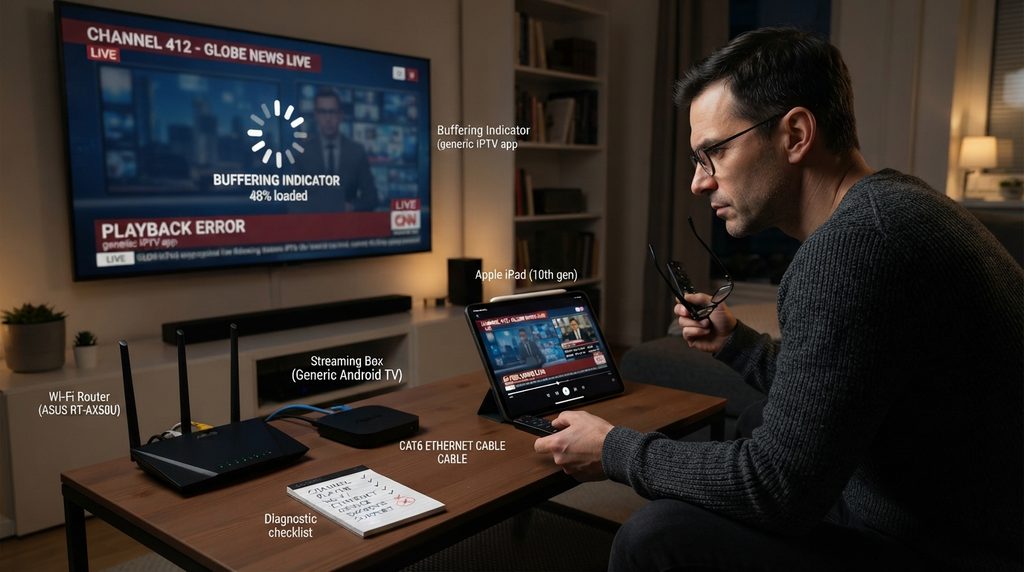
Even a correctly installed IPTV application can experience loading or playback problems. The first step is identifying whether the problem comes from the playlist, account, device, application, or internet connection.
Problem
Possible cause
Recommended action
Playlist will not load
Incorrect URL or unsupported format
Verify the playlist address and selected login type
Login rejected
Incorrect credentials or account issue
Recheck the server URL, username, and password
Channels appear empty
Playlist loading or provider-side problem
Refresh the source and contact the provider
Frequent buffering
Network congestion, weak Wi-Fi, or unstable stream
Test the connection and use a more stable network
Black screen
Unsupported format or unavailable stream
Update the player and test another supported stream
EPG shows incorrect times
Incorrect guide data or timezone
Check the EPG source and application timezone
Too many connections error
Subscription connection limit reached
Check active devices and account restrictions
A useful troubleshooting method is to test one variable at a time.
For example, try another channel in the same application. If only one channel fails, the problem may be specific to that stream. If every channel fails, investigate the account, playlist, application, and internet connection.
Strong 8K provides a contact page for account configuration and technical assistance. Use it to request help when the problem cannot be resolved through standard application settings.
Is an 8K IPTV Player Right for You?
An IPTV player can be useful if you want a dedicated interface for managing live television and on-demand content.
However, the right choice depends on what you actually need.
Your situation
What to prioritize
You use a Fire TV device
Fire TV compatibility and remote-friendly navigation
You own an Android TV
Android TV support and an appropriate application listing
You watch on a Smart TV
Compatibility with your television’s operating system
You have an M3U playlist
Reliable M3U/M3U8 import
Your provider uses Xtream Codes
Xtream Codes login support
You prefer program schedules
EPG support
You own an 8K television
Verified native 8K decoding and an actual 8K source
Strong 8K states that its service supports a broad range of devices, including Firestick, Smart TVs, Android and iOS devices, computers, and MAG boxes. It also references additional platforms in its website FAQ. The exact application and login requirements should nevertheless be confirmed for your particular device. #1 Official IPTV 2026
For viewers considering Strong 8K, the most practical approach is to confirm the compatible application, supported login method, and expected video quality before configuring the subscription.
Final Thoughts on Choosing an IPTV Player
Choosing an 8K IPTV Player should start with compatibility, security, and the type of playlist your provider supplies.
A good application should work with your device, provide a straightforward configuration process, and support the features you actually use. However, its name alone cannot establish video quality.
Remember that native 8K playback requires an 8K source, compatible software and hardware, a suitable display, and sufficient bandwidth.
Strong 8K can be another option to investigate when comparing IPTV services and device compatibility. Review its published information and contact its support team to confirm the exact setup requirements before choosing an application.
The best decision is the one that matches your hardware, content source, and actual viewing requirements rather than an unsupported resolution promise.