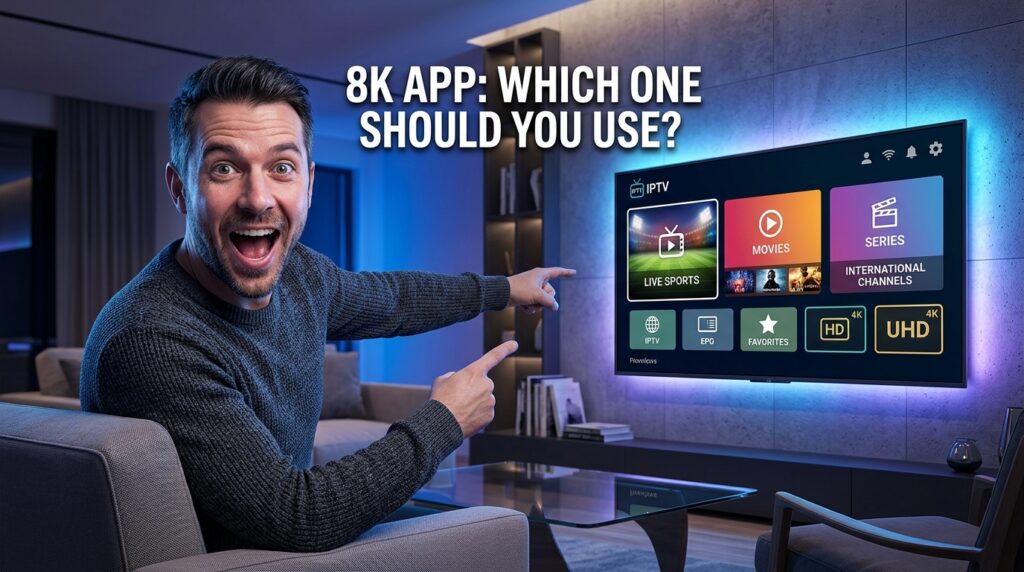
An 8k app is the software layer that turns an authorized IPTV or streaming subscription into something you can actually use on a television, Fire TV device, Android TV box, phone, tablet, or computer. The app handles the interface: channel groups, favorites, search, movies, series, Electronic Program Guide data, and playback controls. The subscription provides the content you are permitted to access. That difference matters because many people install a player and assume the installation itself includes channels, when in reality the app and the content source are often separate.
There is also no single 8k app that is automatically best for every device. Strong-related directories list several player families, including Player Plus, Prime, VIP, VIP+, Fast 8K, TiviMate-style options, desktop software, and iOS players. The best choice depends on the device you use most, the login format your provider gives you, how much control you want over the interface, and whether the app stays responsive with a large playlist.
If you use Strong8KTVs, start by reviewing the Strong8KTVs channel list so you know which channels and categories matter to you. Then use the Strong8K free trial when available and test the same account on your main device. A proper comparison keeps the subscription, network, channels, and hardware the same so you can see whether the 8k app itself improves or hurts the experience.
Table of Contents
What Does an 8K App Actually Do?
The main job of an 8k app is organization. IPTV subscriptions can contain a very large number of live channels, regional feeds, sports groups, movies, series, and international categories. Without a good player, that library can become difficult to navigate. The app takes the account or playlist information supplied by the provider and turns it into a television-friendly interface where you can move between groups, search for content, build favorites, and use guide data.
What the app does not normally do is create the subscription itself. Two people can install the same 8k app and see completely different channel libraries because they are using different accounts. This separation is useful when troubleshooting because it helps you identify which part of the setup is failing. If one player refuses to load while another compatible player works with the same credentials, the first app becomes a stronger suspect. If every player fails across several devices, the problem is more likely to involve the account, server, credentials, or network route.
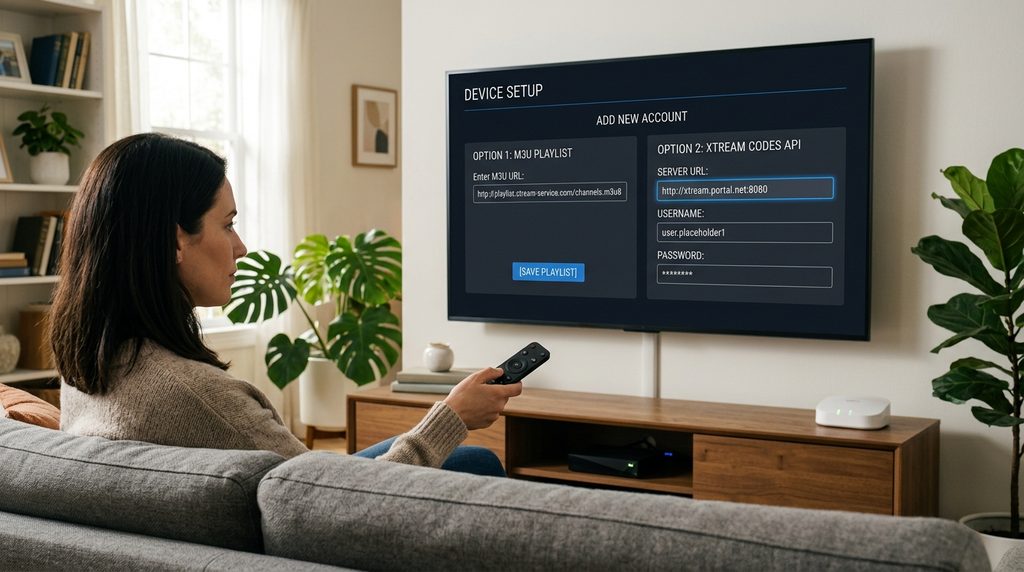
This also means you do not necessarily need a new subscription just because you dislike one interface. If your account supports common formats such as M3U or Xtream-style credentials, you may be able to use the same authorized subscription inside another compatible 8k app. Changing the 8k app can improve navigation, EPG handling, or stability without changing the underlying content source.
Which 8K App Fits Your Device Best?
The device should narrow your player choices before you start comparing features. A player designed for Fire TV and Android TV may be a great choice on a television screen but make little sense for someone who mainly watches on an iPhone. Likewise, a touch-first mobile player may feel awkward when controlled with a TV remote. The best 8k app is the one that feels natural on the hardware you actually use.
Think about where most of your viewing happens. If almost everything is watched on a living-room TV, remote navigation should matter more than phone features. If you switch between a phone and tablet, a clean touch interface matters more. If you use Windows or macOS, stable desktop playback and playlist handling become the priority. Choosing by device first avoids wasting time on apps that were never a good fit.
Why Fire TV and Android TV Give You More Choices
Fire TV and Android TV usually offer a wider range of IPTV players because many 8k app options are distributed for Android-based systems. These platforms are designed around remote-controlled television interfaces and can handle apps that organize large live-TV and VOD libraries. That flexibility makes it easier to compare players without replacing the subscription itself.
Hardware still matters. A modern Android TV box or newer Fire TV device with more memory and free storage can usually handle large playlists and EPG databases more comfortably than an older streaming stick. If an 8k app takes a long time to open categories, freezes while scrolling, or closes when importing thousands of entries, the hardware may be part of the problem. Before blaming the service, check storage, restart the device, and compare the same account on stronger hardware when possible.
What Should iPhone and iPad Users Look For?
Apple users should not follow Android APK instructions. A current Strong 8K player is available through Apple’s App Store for iPhone and iPad, and the listing describes it as a media player that works with a user’s own M3U or Xtream source. That is a useful example of how an 8k app should be understood: the player provides the interface, while the user supplies an authorized content source.
For iPhone and iPad, store-based installation is generally cleaner than trying to adapt Firestick instructions to iOS. Look for an 8k app with clear playlist support, favorites, history, picture-in-picture, parental controls where needed, and a layout that makes sense on a touchscreen. The same subscription may work across different devices, but the best player can still be different on each platform.
Which Login Format Does Your 8K App Need?
Most users setting up an 8k app will encounter an M3U playlist, Xtream-style credentials, or another provider-supported login method. M3U usually arrives as a longer playlist URL and may be accompanied by a separate EPG address. Xtream-style access typically separates the server URL, username, and password into individual fields. Some players support both methods, while others are built around one specific format.
Use the exact format provided with your account. If the 8k app asks for a playlist URL, entering only a username will not work. If the app asks for server, username, and password separately, pasting the complete M3U link into the server field may also fail. Small errors such as an extra space, missing character, or wrong protocol can stop a valid account from loading.
Treat these credentials as private information. M3U URLs often contain account details directly inside the link, so a screenshot can expose more than you expect. When asking for help, show the device type and error message while hiding private playlist URLs, passwords, and account-specific server information. A good player should make setup straightforward, but you still need to enter the correct information in the correct fields.
How Do You Make a Huge IPTV Library Easy to Use?
A large channel count can sound impressive before you start using it, but the everyday experience depends on how well the 8k app organizes that library. Thousands of entries can include duplicate regional feeds, backup sports channels, several languages, VOD groups, and categories you never watch. If the app simply throws everything into long lists, the size of the catalog becomes a disadvantage rather than a benefit.
Start by reducing the interface to what matters. Keep your most-used categories easy to reach, hide groups you never use when the player supports it, and learn the search function before manually scrolling through hundreds of entries. A well-organized 8k app should make a huge subscription feel smaller and easier, not make you spend more time browsing than watching.
Why EPG and Favorites Matter More Than Flashy Design
The first thing you notice may be the visual design, but EPG and favorites usually matter more over time. A useful Electronic Program Guide tells you what is currently playing and what comes next, which makes live television feel much more familiar. Favorites remove the need to browse the full playlist every night. Together, these features can have more impact on daily comfort than a decorative home screen.
Build a favorites list as soon as the 8k app finishes syncing. Add local channels, sports, news, entertainment, movies, children’s programming, and important international stations. Then test whether those favorites remain after restarting the player. Check whether EPG times are correct and whether program information appears for the channels you actually watch. A player with a beautiful interface but unreliable guide data can become frustrating very quickly.
Does an 8K App Really Mean Native 8K Video?
No. The name 8k app does not mean every stream becomes native 8K. A media player cannot create genuine source detail that is not present in the original video feed. Native 8K playback requires an actual 8K source, suitable encoding, enough bandwidth, compatible decoding hardware, and a display that can show that resolution.
In practice, one playlist may contain a mixture of SD, HD, Full HD, 4K, and other quality levels. Your television may upscale lower-resolution content to match its panel, but upscaling is not the same as receiving an original native 8K stream. That is why you should judge an 8k app by real playback rather than the number in its name.
Watch sports to check motion and fast camera movement, news to inspect text and graphics, and movies to check compression in darker scenes. Pay attention to audio synchronization, startup speed, and how often the stream buffers. Stable Full HD or 4K can provide a better experience than a higher-resolution option that stops every few minutes. Reliability should win over the biggest label.
When Playback Buffers, Is the App Really the Problem?
Buffering is one of the easiest problems to misdiagnose. When an 8k app buffers, the software is only one part of the streaming chain. The source server, ISP route, router load, Wi-Fi strength, VPN path, device memory, decoder, and background downloads can all affect playback. Reinstalling the app immediately changes one component without telling you whether that component was responsible.
The useful question is whether the problem follows the player. If the same channel buffers in one 8k app but runs smoothly in another compatible player on the same device and network, the first app or its configuration deserves more attention. If both players buffer in the same way, especially across several channels, the source or network becomes a stronger suspect.
Use a Controlled Test Before Reinstalling Anything
Test another channel from the same category.
Open a channel from a completely different group.
Restart the stream and the 8k app.
Restart the streaming device.
Check another video application on the same device.
Pause large downloads or cloud backups.
Compare Wi-Fi with Ethernet when possible.
Load the same account in another compatible player.
Try another supported device before contacting support.
This order prevents random troubleshooting. If you change the player, restart the router, switch VPN servers, and alter several device settings at once, you may improve playback without knowing what actually fixed the problem. A controlled comparison tells you whether the 8k app itself is responsible or whether the issue sits elsewhere in the chain.
Why Downloader Codes and App Sources Need to Be Verified
Downloader codes are convenient on Fire TV because typing a short number with a remote is easier than entering a long web address. The problem is that an 8k app Downloader code may change when the installer is updated or moved to another hosting location. Strong-related pages can list different codes for similarly named players, so an old code should not be treated as a permanent part of the app’s identity.
If you already have a working 8k app, there is usually no reason to reinstall it simply because another page shows a newer code. The new number may point to a different build or hosting location rather than a meaningful upgrade. Verify the current route before installing, especially when the app is distributed outside a normal store.
Source verification matters too. Avoid random modified packages and file-sharing links that cannot be connected to the legitimate provider or app developer. When several websites all describe themselves as the official source while publishing different player lists, use the support route tied to the subscription you actually purchased and verify which installer they recommend. Convenience should not come at the cost of device security.
How Should You Compare and Test an 8K App Before Keeping It?
The cleanest way to choose between players is to combine a fair comparison with a realistic trial. A player can look faster simply because you tested it with a different channel, different playlist, or different network condition. To learn whether the app itself is better, keep everything else as consistent as possible.
Keep the Device, Network, and Channels the Same
A fair comparison keeps everything except the player the same. Use the same authorized subscription, same device, same network, and same channels. Then compare startup time, guide loading, search, favorites, VOD navigation, channel switching, and stability. If you change the network or content at the same time, you cannot tell whether the difference comes from the 8k app or something else.
Area
What to Compare
Why It Matters
Startup
How quickly the app becomes usable
Slow loading becomes annoying every day
EPG
Guide speed and accuracy
Live TV is easier to browse
Favorites
How easy they are to create and reopen
Reduces scrolling through huge playlists
Search
Speed and quality of results
Important for large VOD libraries
Playback
Startup, motion, audio sync, stability
Determines the actual viewing experience
Device load
Memory use, crashes, sluggish menus
Older hardware may struggle
There is no need to compare five or six players at once. One simple 8k app and one more advanced alternative are usually enough to show whether the interface changes your experience. Too many apps create duplicate profiles and make it harder to remember which configuration belongs to which test.
Test Your Real Viewing Routine Before You Commit
A trial should reproduce your real viewing routine. For Strong8KTVs users, start with the Strong8K free trial and install the 8k app on the television or streaming device you plan to keep using. Then test the channels you actually care about from the Strong8KTVs channel list instead of spending the whole trial opening random categories.
Watch several priority channels for meaningful periods. Test a real sports event if live sports matter, inspect EPG accuracy, create favorites, search for movies and series, and restart the player to make sure settings remain. If subtitles or alternate audio tracks are important to your household, test those too. The goal is to see whether the player remains comfortable after extended use, not simply whether it can open one stream.
Try the app during your normal evening viewing hours as well. A quiet daytime test can miss issues that appear when your home network is busier or popular live content is under more demand. If the 8k app stays responsive, your priority channels work, the guide remains accurate, and the interface feels natural with your remote or touchscreen, you have a much stronger reason to keep it.
Which Mistakes Make a Good IPTV Setup Feel Bad?
Many bad experiences start with changing the wrong part of the setup. Someone dislikes a player and buys another subscription even though the account could have worked perfectly in another interface. Another user sees buffering and keeps reinstalling software without checking Wi-Fi. Someone else finds a newer Downloader code and replaces a stable app for no practical reason.
Assuming the player includes the IPTV subscription.
Choosing a player only because “8K” appears in the name.
Installing several players at once without comparing them properly.
Using old Downloader codes without verifying the current source.
Sharing M3U URLs, usernames, passwords, or private server details publicly.
Blaming every buffering problem on the app.
Ignoring EPG and favorites until the playlist becomes difficult to use.
Testing only random channels instead of real viewing priorities.
Buying a long subscription before the setup has proven reliable.
The cleaner approach is to isolate one variable at a time. Keep the account and device the same when comparing players. Keep the 8k app and channel the same when comparing Wi-Fi with Ethernet. Keep the network unchanged when testing whether one player crashes while another works. Controlled tests make troubleshooting faster and reduce unnecessary changes.
Frequently Asked Questions About 8K App Players
Does an 8K App Include IPTV Channels?
Not necessarily. An 8k app is usually a media player that loads an authorized M3U, Xtream-style account, or another supported source. The app itself does not automatically provide a paid channel library. You still need a valid subscription or authorized playlist that the player can use.
Is There an 8K App for iPhone and iPad?
Yes. A Strong 8K media player is available through Apple’s App Store for iPhone and iPad and supports user-provided M3U and Xtream sources. For Apple devices, using a store-based 8k app is generally cleaner than trying to follow Android sideloading instructions that do not apply to iOS.
Can I Use an 8K App on Firestick?
Yes. Fire TV is one of the most common platforms for Android-oriented IPTV players. Verify the current installer before sideloading because Downloader codes can change, and make sure the device has enough free storage to handle the playlist and guide data.
Why Does My 8K App Keep Buffering?
The cause may be the player, but it can also involve the source, server, ISP route, Wi-Fi, router, VPN, device, or decoder. Test the same stream in another compatible 8k app and on another device before deciding the first app is responsible.
Can I Use the Same Subscription in Another Player?
Often yes when the subscription uses a supported M3U or Xtream-style format and your provider permits it. Confirm the setup rules for your account before entering the credentials into another 8k app. This can be useful for testing whether a problem follows the player.
Why Is My EPG Missing or Incorrect?
Give the guide time to synchronize, confirm the time zone, and test several channels. If one 8k app has missing EPG data while another compatible player displays it correctly, the first app’s configuration may need attention. If every player lacks guide data for the same channels, the guide source becomes a stronger suspect.
Which 8K App Should You Use in 2026?
The best 8k app is the one that matches your device, accepts your authorized account format, loads EPG data reliably, keeps favorites organized, and plays your priority channels without constant troubleshooting. Fire TV and Android TV users usually have the broadest selection, while iPhone and iPad users can use a store-based player that supports their own M3U or Xtream source.
Do not choose only by the word “8K,” a Downloader code, or a flashy home screen. Compare players using the same account, device, network, and channels. Protect your credentials and verify the installation source. If one player works noticeably better than another with the same subscription, choose the interface that creates less friction. If every player struggles in the same way, investigate the account, network, or source before cycling through more apps.
For Strong8KTVs users, review the channel lineup, use the free trial, and test the player under the same conditions you will use after subscribing. Once the player remains stable, the guide and favorites work properly, and the interface feels natural on your main device, you have enough evidence to decide whether that setup deserves a permanent place on your television.