Choosing an 8K player app involves more than downloading an application with an impressive name. The actual viewing experience depends on the media player, video source, supported codecs, streaming device, display resolution, and internet connection.
An 8K player app can help organize and play compatible video content, while an IPTV player can also provide an interface for accessing a user’s authorized streaming playlist. However, installing an application does not automatically provide 8K channels, movies, or an IPTV subscription.
For viewers exploring modern IPTV applications, Strong 8K offers a starting point for understanding how streaming services, compatible devices, and media players work together. This guide explains the essential features, compatibility requirements, installation considerations, and common playback problems.
Trust and Methodology
This article was prepared using publicly accessible product descriptions, official platform documentation, and Strong 8K’s published website information.
The technical explanations reference Android’s media-format documentation and Google TV’s playback requirements.
No independent hardware benchmark, personal application test, or verified association between the separately listed Strong 8K Player applications and strong8ktvs.us is claimed.
Research review date: November 1, 2026.
Quick Answer: What Is an 8K Player App?
An 8K player app is a media application designed to play compatible video content, potentially including 8K resolution when its software, hardware, codec, and source support it. Some applications also support IPTV playlists, live television interfaces, movies, and electronic program guides. However, the app alone cannot create 8K quality or provide content that the source does not deliver.
Table of Contents
What Is an 8K Player App?
An 8K player app is software that handles video playback and allows users to access compatible media through a television, computer, smartphone, or streaming device.
The term can describe different types of applications. Some are traditional video players designed for local files, while others are IPTV players that connect to external playlists or supported streaming services.
The distinction matters because an application advertised as an 8K player does not necessarily support every 8K video format or IPTV streaming method.
How 8K Playback Works
8K resolution refers to an image containing approximately 7,680 × 4,320 pixels, commonly called 4320p.
For comparison:
Resolution
Approximate pixel dimensions
Typical use
HD
1,280 × 720
Standard high-definition video
Full HD
1,920 × 1,080
Movies and television
4K UHD
3,840 × 2,160
Ultra-high-definition streaming
8K UHD
7,680 × 4,320
Ultra-high-resolution displays
An 8K video contains four times as many pixels as a 4K video. However, the additional detail is useful only when the complete playback system supports the required resolution.
This means the following components must work together:
The original video must actually be available in 8K.
The media player must support the required video format and decoding method.
The streaming device must have sufficient processing and decoding capabilities.
The television or monitor must support the intended resolution.
The internet connection must deliver enough data consistently for streaming.
A player cannot transform an ordinary HD stream into genuine native 8K content simply by displaying it on an 8K television.
8K Player vs. IPTV Subscription
One of the most common misunderstandings involves confusing a media player with an IPTV subscription.
A media player is the application responsible for handling playback. An IPTV subscription, when used, is a separate service that may provide access to live television streams, movies, series, or other content.
Component
Main purpose
8K player app
Plays compatible video content
IPTV subscription
Provides access to an authorized content source
M3U playlist
Contains references to streaming media
Xtream Codes login
Provides account-based IPTV access when supported
Streaming device
Runs the application and processes playback
8K television
Displays compatible high-resolution video
For example, someone can install a media player without having an IPTV subscription. The application may open successfully, but its IPTV sections can remain empty until a compatible source is added.
Strong 8K operates in the IPTV service category. Readers should distinguish its subscription offering from third-party media applications and verify which player is appropriate for their particular device.
What Features Should an 8K Player App Have?
A suitable 8K player app should offer more than an attractive interface. Its technical capabilities, compatibility, playback controls, and privacy practices all influence the experience.
Video and Audio Format Support
Video compatibility is one of the first things to investigate.
Different media applications support different containers, codecs, and streaming protocols. For example, Android’s official media documentation describes support for formats including H.264, H.265 HEVC, VP9, and AV1, with availability depending on the Android version and device implementation.
Common formats and technologies include:
MP4: A widely used multimedia container.
MKV: A flexible container for video, audio, and subtitles.
H.264: A widely supported video compression standard.
H.265 HEVC: A more efficient video compression standard commonly associated with 4K and higher-resolution content.
HLS: A streaming protocol frequently used for internet video delivery.
M3U8: A playlist format commonly associated with HLS streaming.
A good application should clearly document its supported formats rather than advertising universal compatibility.
For IPTV users, playlist compatibility is another important consideration.
Depending on the application, supported features may include:
M3U playlist imports.
Xtream Codes account login.
Live television categories.
Movies and series sections.
Electronic Program Guide (EPG).
Search and favorites.
Recently watched content.
Not every IPTV player supports all these features.
Before downloading an application, check whether its documentation specifically mentions the login method provided by your IPTV service.
An EPG is particularly useful because it displays program information and scheduling details. However, its accuracy depends on the information supplied by the content source and the application’s ability to process it.
Playback Controls and Security
A well-designed application should make ordinary playback tasks straightforward.
Useful features include:
Audio-track selection.
Subtitle controls.
Playback speed adjustment.
Resume playback.
Full-screen viewing.
Playlist organization.
Parental controls when supported.
Reliable application updates.
Security also matters. Download applications from official stores or verified publisher websites whenever possible.
Be cautious with unknown APK files, suspicious download pages, unnecessary permissions, and applications that request personal information unrelated to their purpose.
Which Devices Support 8K Player Apps?
Application compatibility varies by device model, operating system, processor, and available hardware decoding.
A player may install successfully on a television but still fail to decode a particular high-resolution video.
Android TV and Fire TV
Android-based streaming devices offer access to different media-player applications.
Before installing an application, check:
The Android or Fire OS version.
Whether the app supports television interfaces.
Available storage space.
Hardware video-decoding support.
Remote-control compatibility.
Supported codecs and resolutions.
Fire TV users should also verify that the selected application is compatible with their particular device generation.
Do not assume that every Fire TV Stick supports native 8K playback simply because an application uses 8K in its name.
Smart TVs and Streaming Devices
Smart televisions have different operating systems and application stores.
Samsung and LG televisions, for example, use their respective smart-TV platforms rather than offering identical application availability to Android TV.
A compatible player may be available directly through the television’s application store. Other televisions may require an external streaming device.
For the best experience, check the manufacturer’s technical documentation before choosing an application.
Smartphones, Tablets, and Computers
Mobile and desktop devices can also run media-player applications.
However, compatibility differs considerably between models.
A smartphone may support 4K decoding but not the codec or bitrate of a particular 8K video. Similarly, a desktop computer may require compatible graphics hardware and software decoding support.
The right application depends on what you want to watch and which device you own.
A local video player may be sufficient for downloaded media, while IPTV users may need playlist imports, account authentication, live television categories, and an EPG.
Consider these factors before choosing.
1. Check Official Application Availability
Start with the official application store for your device.
Check the developer name, publication details, update history, privacy information, and compatibility requirements.
Do not rely exclusively on third-party websites advertising an APK as an official download.
2. Confirm Supported Playback Formats
Check whether the application supports the video codecs and streaming protocols used by your content source.
A player that supports MP4 files, for example, may not necessarily support every HLS stream or HEVC profile.
3. Review IPTV Login Options
If you plan to use an IPTV playlist, confirm whether the application supports the authentication method supplied by your provider.
Some applications accept M3U URLs, while others use Xtream Codes credentials or different connection methods.
4. Consider Interface and Navigation
A television application should be easy to navigate using a remote control.
Useful interface features include:
Clear channel categories.
Accessible search.
Simple settings.
Easy playlist management.
Readable program information.
Responsive playback controls.
5. Examine Privacy and Support
Read the application’s privacy policy and review its permissions.
Check whether the developer offers a reliable support channel and provides clear troubleshooting instructions.
Compatibility Checklist
Use this checklist before installing an application.
Requirement
What to check
Operating system
Is your device officially supported?
Video resolution
Does the hardware support the required output?
Video codec
Can the device decode the source format?
Playlist support
Does the app accept your IPTV format?
Internet
Is the connection sufficiently stable?
Privacy
Are permissions and data practices explained?
Updates
Is the application maintained?
Support
Can you contact the developer?
This documentation-based checklist is more useful than relying on an application’s name or promotional description.
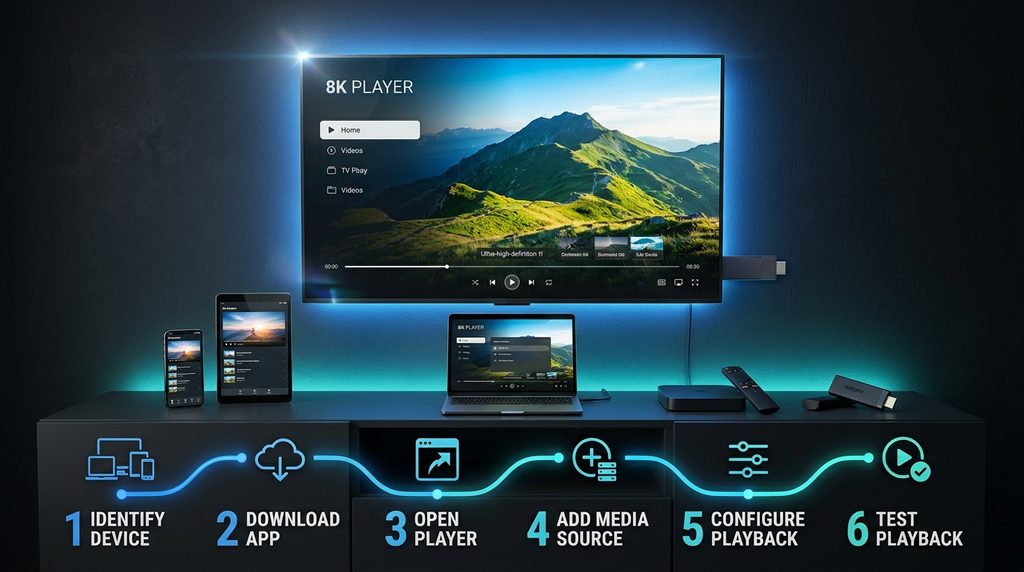
How to Set Up an 8K Player App
The exact installation process depends on the application and device. However, most compatible media players follow a similar setup process.
Step 1: Identify Your Device
Determine whether you are using an Android television, Fire TV device, smartphone, tablet, computer, or another supported platform.
This helps you select the correct application version.
Step 2: Download the Application
Open the official application store or the verified developer’s download page.
Check the application name and developer information before installing.
Avoid unofficial download links when a verified distribution method is available.
Step 3: Open the Application
Launch the player and review its initial setup instructions.
Some applications provide sample content or a demonstration mode. Others require you to add a compatible media source before displaying content.
Step 4: Add Your Media Source
If the application supports IPTV, follow its documented login procedure.
Depending on the player, you may need:
An M3U playlist URL.
A supported Xtream Codes account.
A compatible streaming address.
Local media files.
Only use content sources you are authorized to access.
Step 5: Configure Playback
Review the available settings.
You may be able to configure audio tracks, subtitles, playback preferences, aspect ratio, and parental controls.
Avoid changing advanced settings without understanding their purpose.
Step 6: Test Playback
Start with a compatible video and check whether playback is smooth.
Verify the displayed resolution, audio synchronization, and network stability.
If the video plays at a lower resolution than expected, investigate the source, device, and display before assuming the application is defective.
Common 8K Player App Problems
Even a compatible media player can experience playback problems.
Understanding where the problem originates makes troubleshooting easier.
Problem
Possible cause
What to check
Buffering
Network congestion or source issues
Test your internet connection
Black screen
Unsupported codec or playback error
Check format compatibility
No channels
Missing or invalid playlist
Verify account details
Login failure
Incorrect credentials
Check username, password, and server
Low resolution
Source or device limitation
Verify original video quality
Audio problems
Unsupported audio format
Try another supported audio track
App crashes
Software or device limitations
Update the application
Missing EPG
Incorrect guide data
Check playlist and EPG configuration
Why Does an 8K Video Buffer?
Buffering can result from several factors:
An unstable Wi-Fi connection.
Network congestion.
Insufficient available bandwidth.
A slow or unavailable content source.
Device processing limitations.
High video bitrate.
Start by testing another video on the same device. If other content plays normally, the issue may be specific to the original source.
If multiple applications experience the same problem, investigate the network or device.
Why Does an 8K Player App Display 4K or HD?
An application cannot guarantee that every video will play at the highest advertised resolution.
The actual result depends on the original source, hardware decoder, software support, display, and connection.
Google’s television support documentation also explains that higher-resolution playback requires compatible content, sufficient internet speed, and supported hardware.
An 8K player app can be useful if it supports your media formats, device, and intended playback method.
However, the label alone should not determine your decision.
For users who primarily watch local video files, a conventional media player with strong codec support may be sufficient.
For IPTV users, playlist compatibility, EPG functionality, device support, account security, and ease of navigation may be more important than an 8K marketing label.
Strong 8K is relevant to users exploring IPTV entertainment and compatible streaming devices. Before selecting a subscription, review the available information, supported devices, and service conditions.
You can explore the Strong 8K website to learn more about its IPTV offering.
Frequently Asked Questions
1. What is the best 8K player app?
The best application depends on your device, video formats, IPTV requirements, and playback preferences. Compare official compatibility information and supported codecs before installing a player.
2. Can an 8K player app play 4K videos?
Yes, provided the application and device support the video’s format and resolution. Many media players support multiple resolutions rather than being restricted to 8K.
3. Does an 8K player app provide free TV channels?
Not automatically. A media player generally handles playback, while the content must come from a separate authorized source or service.
4. Can I use an 8K player app on Firestick?
Some media players support Fire TV devices, but compatibility varies by application and device generation. Check the official installation instructions before downloading.
5. Do I need an 8K television to use an 8K player app?
No. A compatible player can often play lower-resolution content on HD or 4K displays. However, displaying native 8K resolution requires an appropriate 8K-capable playback chain.
6. Why does my 8K player app keep buffering?
Common causes include unstable internet, network congestion, high video bitrate, source problems, or device limitations. Test another stream and check your network before changing advanced player settings.
Final Thoughts
Choosing an 8K player app requires understanding the difference between software, streaming content, hardware, and display resolution.
A reliable decision starts with checking application compatibility, supported video formats, IPTV playlist requirements, security, and the capabilities of your device.
Remember that an 8K label does not automatically guarantee native 8K playback. The entire system must support the content being played.
For readers exploring IPTV entertainment, Strong 8K provides an additional starting point for reviewing streaming options and subscription information.
Visit Strong 8K to explore its services and find out whether its offering matches your viewing requirements.