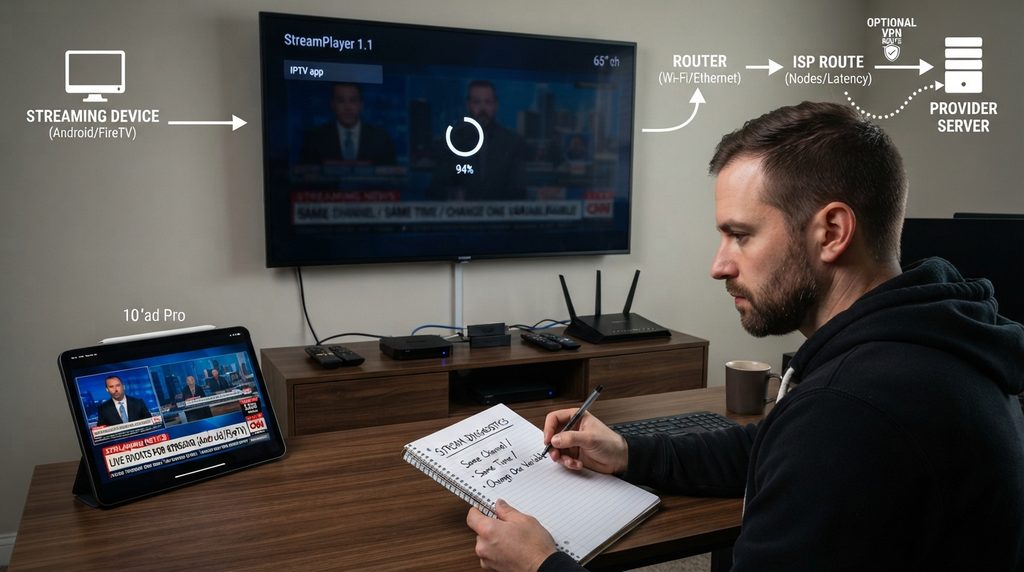
Strong 8K buffering can turn a good-looking IPTV stream into a frustrating cycle of frozen pictures, repeating video, delayed channel starts, audio continuing while the image stops, or constant pauses every few seconds. The important thing is that buffering is a symptom, not a diagnosis. The problem can begin at the source channel, inside the provider route, at your ISP, on Wi-Fi, through a VPN, inside the player, or on the streaming device itself.
That is why the fastest way to fix Strong 8K buffering is not to reinstall everything or change every setting at once. A better approach is to compare one variable at a time until you can see where the failure follows you. One bad channel needs a different response from every channel freezing. A stream that fails only on Wi-Fi points somewhere different from a stream that fails in every player, on every device, and on more than one network.
Recent community reports described in the source also show mixed 2026 experiences. Some viewers report long periods of smooth 4K sports, while others describe freezing during certain events, high-bitrate VOD, or specific time periods. Those reports are anecdotal rather than controlled benchmarks, but they reinforce the same lesson: your own device, route, player, and viewing conditions matter.
Table of Contents
What Should You Check First When Strong 8K Buffering Starts?
Start with a five-minute diagnosis before you touch advanced settings. Change to another channel in the same category, then try a channel from a completely different group. If one sports stream freezes while news, movies, and another sports network remain normal, the source feed may be the problem. Resetting the entire player would be a poor first move because the rest of the account is still working.
If nearly everything is affected, restart the player and device, then test the same authorized account in another compatible application. After that, compare Wi-Fi with Ethernet when available or briefly use another network route such as a mobile hotspot when practical. These quick comparisons tell you far more about the problem than staring at one frozen channel and guessing which component is responsible.
Write Down the Pattern Before You Start Fixing It
Notice the details that repeat. Is the problem only in the evening? Only on 4K? Only on one Firestick? Only during football? Does VOD freeze while live television remains fine? Does audio continue while the picture stops? Those details are not minor; they are clues. A useful troubleshooting process follows the pattern instead of applying the same fix to every symptom.
Is One Channel Buffering or Is the Whole Service Affected?
The first serious test is to compare several channels from different groups. Strong 8K buffering on one feed does not mean the whole subscription is unstable. IPTV playlists often contain separate sources for sports, entertainment, news, local television, and international channels. One source can have a problem while the rest of the service behaves normally.
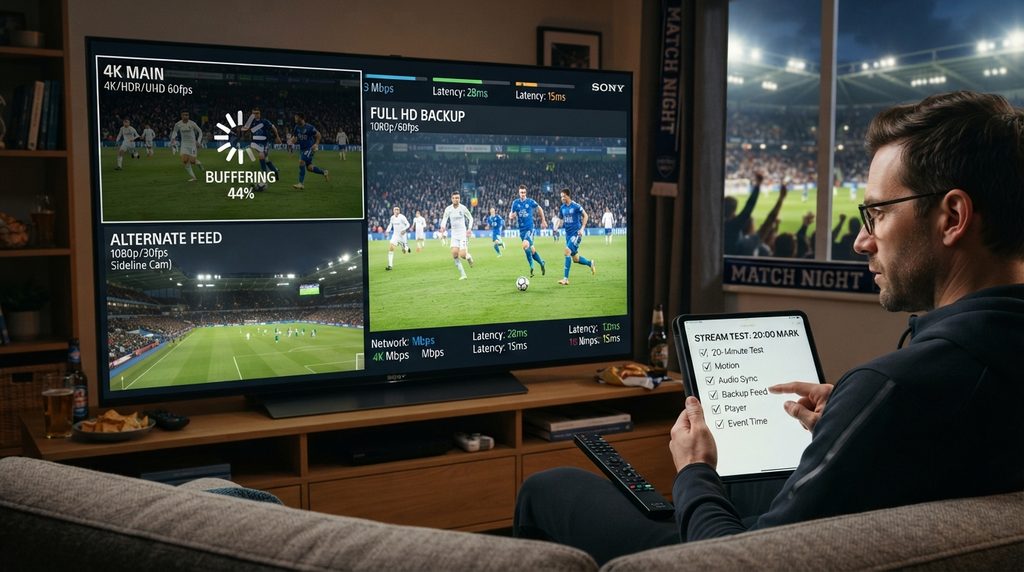
When alternate versions of the same channel exist, compare them. You may see HD, Full HD, 4K, regional, or backup feeds. A stable Full HD version is much more useful than a nominal 4K feed that freezes every thirty seconds. For sports, this matters even more because you need an alternative ready before an important event starts.
Compare Live TV and VOD Separately
If Strong 8K buffering appears across many live channels, check a movie or series. If live TV works but VOD freezes, write that down. Live television and on-demand libraries can use different origins, caches, or delivery paths. Telling support “everything buffers” when the problem is actually VOD-only removes useful information that could narrow the issue much faster.
Why Should You Restart the Player and Device Before Changing Settings?
A streaming application accumulates cache, guide data, artwork, temporary connection state, and memory usage over time. Restarting the player and the streaming device is simple, but it gives you a clean baseline before you start touching buffer size, decoder mode, DNS, VPN, or server information. If the freezing disappears immediately after a restart, that is evidence worth keeping.
If the problem returns only after several hours, pay attention to storage, memory, and heat. Older sticks and lower-cost Smart TVs can become sluggish after loading a huge playlist, several days of EPG data, and thousands of VOD images. Freeing unused storage, closing unnecessary apps, and making sure the device is not overheating can sometimes improve stability without changing anything about the subscription.
Can Wi-Fi Cause Strong 8K Buffering Even With Fast Internet?
Yes. Internet speed and connection quality are not the same thing. Wi-Fi can produce an excellent download-speed result while still suffering from brief interference, packet retransmissions, congestion, or latency spikes that interrupt a high-bitrate stream. That is why Strong 8K buffering can appear on a 200 Mbps or faster connection while another viewer with a slower but cleaner route streams normally.
A speed test is useful, but it is only one piece of evidence. IPTV playback depends on continuous delivery. Short drops, packet loss, unstable latency, and home-network congestion can hurt streaming even when the average bandwidth number looks impressive.
Use Ethernet as a Clean Comparison
If your streaming hardware supports Ethernet, use it for a full viewing session. Keep the same account, player, device, channel, and approximate time. If Strong 8K buffering disappears over Ethernet but returns on Wi-Fi, you now have strong evidence that the home wireless connection deserves attention before you replace the IPTV service.
Do not compare five minutes of Wi-Fi in the afternoon with Ethernet during a completely different viewing period. The comparison is strongest when everything except the network connection stays the same.
Why a Fast Speed Test Does Not Rule Out Network Problems
Packet loss, latency spikes, and bufferbloat can create playback problems without dramatically lowering the headline download speed. Bufferbloat is especially noticeable when another device saturates the connection with uploads, cloud backups, game downloads, or large file transfers. The network may technically be fast while real-time playback becomes unstable.
This matters more for high-bitrate streams because they leave less room for interruption. If 4K content freezes while Full HD is stable, the higher data rate may be exposing a route, decoder, or device limitation that lower-bitrate channels can tolerate.
What Does a Second IPTV Player Tell You About the Problem?
A second player is one of the cleanest tests available because it lets you keep the account, device, network, and channel the same while changing only the application layer. If Strong 8K buffering happens in one app but the exact same account and stream run smoothly in another, the first player, its decoder, or its local configuration becomes a stronger suspect.
Android TV and Fire TV users often compare a Strong-oriented player with TiviMate or another compatible application. The purpose is not to prove that one player is universally better. The purpose is to find out whether the problem follows the stream or stays with the software.
Compare More Than One Channel Before You Decide
Use five to ten priority channels rather than making the decision from one stream. Compare startup speed, EPG loading, sports playback, VOD behavior, and whether the freezing appears after several minutes. A player that looks perfect on one channel can still behave differently with another codec or high-bitrate feed.
When Is a VPN Worth Testing for Strong 8K Buffering?
A VPN can sometimes help because it changes the network route between your device and the streaming infrastructure. If the normal ISP path is congested, filtered, or unstable during particular hours, a different route may improve playback. Community discussions about Strong 8K buffering include both positive and negative VPN results, which is why a VPN should be treated as a controlled test rather than a guaranteed fix.
Use the same channel, player, device, and time period with the VPN off and then on. Start with a nearby VPN server. If playback improves consistently, routing may be part of the problem. If it becomes worse, the VPN may be adding latency, congestion, or another bottleneck.
Do Not Leave a VPN On Just Because Someone Recommended It
If Strong 8K buffering is identical with the VPN on and off, the test did not support the routing theory. Turn it back off and continue diagnosing. Adding permanent complexity without evidence makes future troubleshooting harder, especially when the VPN itself can become another variable.
Why Do Sports and Peak-Time Events Expose Buffering Faster?
Major football matches, finals, fights, Formula 1 races, and other high-demand events are useful stress tests because they combine heavy viewer demand with fast motion and, in some cases, higher-bitrate feeds. Strong 8K buffering may be absent all afternoon and then appear during the exact event you care about. That pattern is very different from a device that freezes every channel all day.
The source describes mixed community reports during major 2026 sports periods: some viewers reported weeks of strong 4K performance with minimal buffering, while others reported freezes, temporary playback errors, loops, or specific games performing badly. These anecdotes do not establish a universal service quality, but they show why peak-event testing matters before you buy a long subscription.
Keep a Stable Backup Feed Ready Before the Event Starts
If several versions of a sports channel are available, test them before kickoff or the start of the event. Save the best alternatives in favorites. A stable Full HD backup may be far more valuable than a higher-resolution feed that freezes during peak load.
When Strong 8K buffering appears only on one event feed while unrelated channels remain normal, the event source becomes a stronger suspect. When every sports version and unrelated channels all fail at the same time, the problem is broader and should be investigated differently.
Is the Problem Limited to Live TV, VOD, or 4K Streams?
Strong 8K buffering does not always affect every type of content equally. Some viewers can watch live television normally while movies or series freeze. Others may see problems only on 4K streams. Those distinctions matter because different content types can use different origins, codecs, bitrates, or delivery systems.
If VOD is the problem, test several titles rather than one popular movie. Compare a newer release, an older title, and something from another category. If only one title freezes, report that exact movie or episode. If many VOD items fail while live television remains smooth, tell support that the issue is VOD-specific rather than describing it as general Strong 8K buffering.
When Only 4K Buffers, Test the Full HD Version
If Full HD is stable and 4K repeatedly freezes, investigate the high-bitrate path. The problem could involve the source feed, network quality, decoder, or streaming hardware. The test does not prove which one is responsible, but it narrows the issue far more than simply saying “the service buffers.”
Can DNS, Server URLs, or Routing Cause Strong 8K Buffering?
Yes. IPTV accounts can use different hostnames, reseller routes, or DNS paths even when they ultimately belong to the same broader ecosystem. A congested or broken route can create Strong 8K buffering for one user while another customer reports normal service. This is one reason community experiences can look contradictory.
Do not copy random server URLs from public forums. If your reseller provides more than one authorized route, test them one at a time with the same player and channels. If one consistently performs better, keep that result and report it to support. If the provider announces a replacement hostname, update only with the connection information issued for your account.
Server Changes Should Be Verified Before You Edit the Player
An unsolicited message telling you to replace the server URL is not enough evidence by itself. Verify the change through the reseller or support contact tied to your subscription. Server credentials and M3U links can contain private account information, so do not post them publicly while asking whether a route is current.
Could Your Firestick, Smart TV, or Android Box Be the Bottleneck?
A beautiful 4K television can still contain modest hardware for third-party streaming applications. Older Fire TV sticks, low-cost Android boxes, and entry-level Smart TV processors can struggle with huge playlists, EPG databases, high-bitrate video, or demanding codecs. Strong 8K buffering can therefore originate on the device even when the account and network are healthy.
Load the same authorized account on a second device using the same home network. If the troublesome channels become consistently smooth elsewhere, your original hardware or its app configuration deserves closer attention. The source includes a 2026 community example where a user later reported that changing streaming hardware, along with a new service link, resolved repeated freezing. That is one individual experience, but it demonstrates why hardware comparison is worth doing.
Look for Device Symptoms Beyond Buffering
Slow menus, repeated crashes, delayed remote response, long EPG refreshes, and VOD artwork taking forever to load all point toward a device under pressure. If those symptoms appear together with Strong 8K buffering, free storage and compare another device before spending hours changing server or network settings.
When Should You Stop Tweaking and Contact the Reseller?
There is a point where more local troubleshooting stops being productive. If Strong 8K buffering affects multiple channels, multiple players, and more than one device while ordinary internet services remain normal, contact the reseller or provider. By that stage, the evidence you collected is more valuable than another reinstall.
Give support specific details: the affected channels or titles, approximate times, whether live TV or VOD is involved, which players you tested, whether Ethernet changed anything, whether another device behaved differently, and whether a VPN or authorized route affected playback. That information gives them something concrete to investigate.
If you use Strong8KTVs, the Strong8KTVs contact page provides a private route for account-specific support. Keep complete passwords and M3U URLs out of public forums or groups when reporting Strong 8K buffering.
How Should You Test Strong 8K Before Buying a Long Subscription?
If you have not subscribed yet, the best buffering strategy is testing the real setup before you make a large commitment. Use the Strong8K free trial on your actual streaming device and network rather than testing only on a phone. Check the Strong8KTVs channel list first so you already know which priority streams to evaluate.
Include at least one peak-time session. Test several live channels for meaningful periods, one real sports event if relevant, multiple VOD titles, EPG behavior, channel switching, and an app restart. If Strong 8K buffering appears, run the same controlled comparisons from this guide instead of rejecting or accepting the entire service based on one stream.
Buy More Time Only After the Setup Earns It
Once the channels, player, device, network, and support route behave reliably, review the Strong8KTVs pricing plans. A longer plan may reduce the monthly cost, but the discount means little if the account has not survived the sports, VOD, evening, and device tests that matter in your home.
Frequently Asked Questions About Strong 8K Buffering
Why Is Strong 8K Buffering With Fast Internet?
Because download speed is only one factor. Packet loss, latency spikes, bufferbloat, Wi-Fi interference, ISP routing, player behavior, device decoding, and source instability can all cause Strong 8K buffering even when a speed test looks excellent.
Should I Increase the Player Buffer Size?
It may help with short connection variations, but it is not a universal fix. Record the original setting, change only the buffer, and compare the same stream for enough time to know whether it actually reduced Strong 8K buffering.
Why Does Strong 8K Buffering Happen Only During Sports?
Major events can use different feeds and can attract heavier demand. Test backup feeds, another player, and a lower-resolution version. If unrelated channels remain stable, the event source or delivery path becomes a stronger suspect.
Why Is VOD Buffering While Live TV Works?
VOD and live television can use different storage or delivery systems. Test several movies or episodes. If many VOD titles buffer while live channels stay normal, report the issue as VOD-specific rather than general Strong 8K buffering.
When Should I Contact the Reseller?
Contact the reseller when Strong 8K buffering persists across several channels, players, and devices after you have checked the home network and normal internet services. Send the evidence you collected instead of only saying that the service is freezing.
What Is the Best Way to Fix Strong 8K Buffering in 2026?
There is no single magic fix because Strong 8K buffering describes a symptom rather than one cause. Recent 2026 community reports range from viewers enjoying smooth 4K sports to users experiencing freezes, loops, high-bitrate problems, VOD issues, and route-specific interruptions. That mixed picture is exactly why structured comparison works better than automatically blaming the provider, ISP, or player.
Start with the simplest tests: another channel, another player, Ethernet, another device, and then a controlled VPN or provider-approved route test when appropriate. Keep the account and as many other variables unchanged as possible. If the problem follows one channel, report that stream. If it follows one player, investigate the software. If it follows one device, investigate the hardware. If Strong 8K buffering follows the account across everything you test, the reseller now has useful evidence to work with.
For Strong8KTVs users, use the free trial before a long commitment, test the channels from the channel list during real viewing conditions, and use the contact page when the problem survives sensible local tests. Once the setup proves reliable, compare the pricing plans and choose a duration based on what your own device and network have actually shown.
The best fix for Strong 8K buffering is finding where the failure begins. Once you know whether the problem follows the channel, player, route, network, device, or account, the next step becomes much clearer—and far less random.