An 8k player is one of the most misunderstood parts of an IPTV setup. Many people see the word “player” beside a streaming brand and assume the app itself contains the channels, movies, series, sports, and subscription. In reality, the player is usually the software layer that receives your authorized login details and turns them into a usable interface. It may organize live television, movies, series, favorites, search, subtitles, audio tracks, and electronic program guide data, but the content source still comes from the subscription or media service connected to it. The broader concept of television is separate from the software used to organize internet-delivered streams.
That distinction matters because it changes how you install, troubleshoot, and evaluate an 8k player. If the app is slow, the subscription may still be fine. An 8k player should therefore be evaluated as software, not mistaken for the content source itself. If the subscription is unavailable, changing the app may not solve anything. If picture quality is poor, the cause could be the source stream, internet route, home network, device hardware, decoder, or app configuration. Instead of treating everything as one product, this guide separates the moving parts so you can choose a player that works well on your actual device and avoid wasting time on the wrong fix.
Table of Contents
What an 8K Player Actually Does
The simplest way to understand an 8k player is to think of it as the television interface between you and your authorized stream source. You enter a supported login method, the app connects to the account, and the interface organizes whatever the account makes available. Depending on the application, this can include live channels, video-on-demand libraries, series categories, favorites, recent channels, search tools, parental controls, subtitles, alternate audio, catch-up features, and EPG information. The player determines how easy those features are to reach, but it does not automatically create or own the content.
This is why two apps using the same authorized account can feel completely different. One 8k player may load categories quickly and make remote-control navigation easy, while another may look attractive but take longer to sync a large playlist. One may save favorites reliably, while another may handle EPG data better. The subscription can remain exactly the same while the daily experience changes because the player is responsible for the interface, playback engine, and many device-level controls.
The Player Is Not the Subscription
Keeping those two ideas separate is the first troubleshooting rule. If one 8k player fails but another compatible application works with the same credentials on the same network, the first app becomes a likely source of the problem. If several supported players fail across more than one device, then the account, credentials, source service, or network deserves more attention. This simple comparison prevents the common cycle of repeatedly reinstalling one application when the actual issue is somewhere else.
For Strong8KTVs users, the same principle applies before committing to a longer service plan. You can review the Strong8KTVs channel list to see whether the underlying service includes the content categories you care about, then use the Strong8K free trial with a compatible player. That lets you judge the service and the interface together while still understanding that they are two different parts of the setup.
What to Check Before Installing One
Do not start by downloading the first app that appears in a search result. Several IPTV-oriented apps use similar names, icons, or “8K” branding, and they do not necessarily come from the same developer. Before installing an 8k player, confirm which application your device supports, what login format the app expects, and where the installer or store listing comes from. A player that is perfect on Android TV may not exist on Samsung TV, while an iPhone version may use a different store listing and interface entirely.
It is also worth checking whether the app is designed primarily for televisions or phones. A television-first 8k player should be comfortable with a remote, large text, directional navigation, clear categories, and fast channel switching. A mobile player should handle touch controls, orientation changes, picture-in-picture, search, and background behavior well. Desktop users may care more about windowed playback, keyboard shortcuts, multiple monitors, or compatibility with general media software.
M3U, Xtream, and Portal Logins Explained
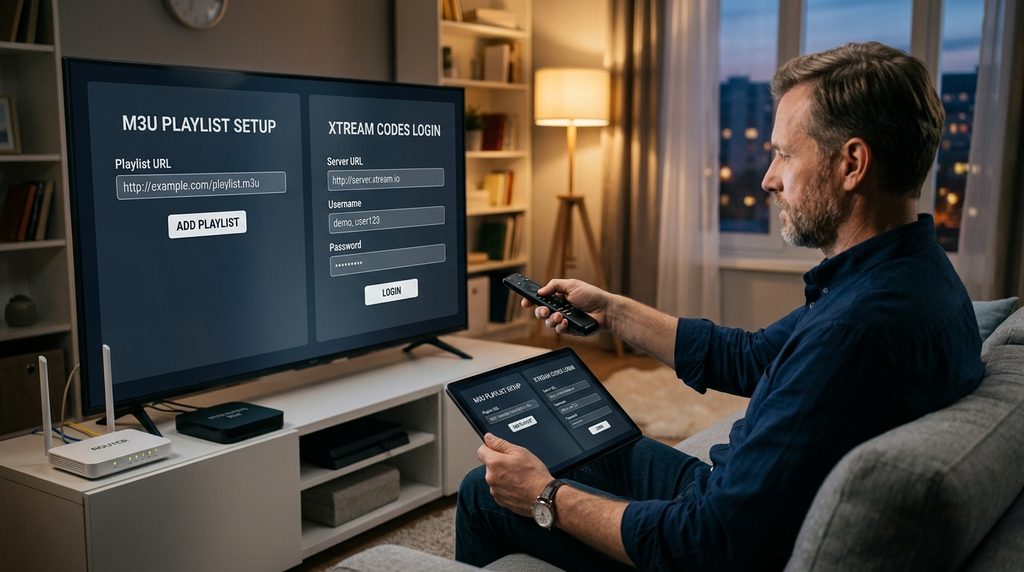
A large percentage of setup problems happen before playback even begins because users choose the wrong login type. An 8k player may support one or several account formats, and those formats are not interchangeable. An M3U setup usually uses a playlist URL and may use a separate EPG address. An Xtream-style login normally asks for a server or portal URL, username, and password. Some applications also support portal-based or device-specific connection methods depending on the platform.
If your provider gives you an M3U link, enter it into the M3U section rather than trying to split it into username and password fields. If you receive server, username, and password details, select the Xtream-style option instead of pasting them into a playlist field. A correctly configured 8k player should accept the format your account uses without forcing you to invent or convert credentials from a random tutorial.
Why the First Sync Can Take Time
After a successful login, the application may need time to download categories, live channels, movies, series, logos, and EPG data. That process can feel slow on older televisions and entry-level streaming sticks, especially when the account contains a very large library. An 8k player that appears unresponsive during the first sync is not necessarily broken. Give the initial import time to complete, then judge normal startup and navigation after the data has been cached.
If the app repeatedly freezes at the same percentage, closes during sync, or never reaches the main interface, then test the same account on another supported device or player. That comparison can tell you whether the problem is related to the account data, device memory, app version, or the specific 8k player you installed.
Choosing a Player by Device
The “best” player is mostly a device question. Fire TV and Android TV users usually benefit from applications built around remote-control navigation, large EPG views, fast favorites access, and support for hardware video decoding. Samsung and LG Smart TV owners need to care more about what their television’s own app store supports, because installing arbitrary Android APK files is not the normal route on those platforms. iPhone and iPad users should generally prefer verified App Store software, while desktop users have the widest range of choices.
On a computer, a dedicated 8k player can provide television-style categories and EPG tools, but a general media application can also be useful for diagnosis. A general player will not necessarily provide the polished IPTV interface of a dedicated application, but it can help answer a useful troubleshooting question: does the authorized stream itself play outside the television app? If it does, that tells you the account and source may be working even when the dedicated interface is struggling.
Fire TV and Android TV
For living-room use, an 8k player on Fire TV or Android TV should make channel browsing simple with only a remote. Look for fast category loading, a clear EPG, stable favorites, a useful search function, and an easy way to return to recently watched channels. If the app requires constant mouse-style navigation or tiny on-screen controls, it may technically work without being a good daily television interface. Comfort matters because an app that feels awkward during a ten-minute test will become much more irritating after weeks of normal use.
Samsung and LG Smart TVs
Smart TV owners should prioritize compatibility and long-term convenience over the name of the app. An 8k player that is available through the television’s supported store is usually easier to update and reinstall than software that requires a complicated workaround. Older televisions may also have slower processors or less memory, so very large playlists can expose hardware limitations that are not obvious when using ordinary streaming apps. In some cases, adding a modern external streaming device can provide a smoother experience than forcing an aging television platform to process a huge IPTV library.
iPhone, iPad, and Android Mobile
Mobile users should judge an 8k player by touch navigation, search, picture-in-picture support where available, subtitles, audio selection, and whether the app behaves well when switching between Wi-Fi and mobile data. A phone interface should not simply be a tiny copy of a television layout. If the controls are difficult to reach or categories require too many taps, the app will become annoying during regular use. Mobile playback should feel designed for a handheld device instead of merely being technically compatible with one.
Features That Matter in Daily Use
The features that look impressive on an app listing are not always the ones that matter after a month. A good 8k player should make repeated actions fast: opening favorite channels, moving between categories, checking what is on now, resuming a movie, finding the next episode of a series, changing audio tracks, and returning to recent content. The fewer steps required for those actions, the more natural the service feels. Flashy animations and complicated menus can actually make a player worse if they slow down the things you do every evening.
Favorites are especially important when a subscription contains thousands of entries. Without them, every viewing session can turn into a search through enormous regional categories. Search quality also matters because channel names are not always organized perfectly. A reliable 8k player should let you create a smaller personal layer on top of a large catalog rather than forcing you to browse the full database every time. Over time, that smaller collection becomes your real television lineup.
Favorites: should remain saved after restarts and updates.
Search: should work across the categories you actually use.
Recent channels: should make switching back to familiar content quick.
Subtitles and audio: should be easy to change without leaving playback.
Parental controls: should be understandable if children use the device.
Resume behavior: should work predictably for movies and series where supported.
Why EPG Quality Changes the Whole Experience
A strong electronic program guide can matter more than visual design. The EPG is what turns a raw list of channels into something that feels like television. A good 8k player should display what is playing now, what comes next, and enough program information to help you decide what to watch. If the guide constantly shows missing data, incorrect times, duplicate rows, or stale information, even a beautiful interface can become frustrating. This becomes especially noticeable for sports and live events, where knowing what starts next is part of the everyday experience.
During testing, do not only check whether an EPG exists. Open the channels you actually care about and compare the displayed program times with your location. Restart the 8k player and see whether the guide still loads normally. Add several favorites and check whether the guide remains usable inside that smaller list. Those small tests reveal much more about daily usability than screenshots from the app’s promotional page, because you are evaluating the exact channels and viewing habits that matter to you.
Playback Quality, Decoders, and Buffering
When a stream freezes, people often blame the player because it is the part they can see. Playback is more complicated than that. The source server, current load, ISP route, Wi-Fi quality, device processor, available memory, hardware decoder, app settings, and stream bitrate can all influence what appears on screen. An 8k player can improve compatibility and decoding, but it cannot manufacture stability when the source or network is failing. This is why changing applications sometimes fixes a problem and sometimes changes absolutely nothing.
The best troubleshooting method is to change one variable at a time. If one channel buffers, try another channel in the same 8k player. If several channels buffer, test a mainstream video app on the same device. If normal streaming also struggles, investigate the network. If other services work perfectly, try the same account in another compatible player. If only one application fails, its decoder or configuration becomes a stronger suspect. This approach is slower than randomly changing every setting, but it makes the result much easier to understand.
A Better Buffering Test
Restart the player and the streaming device.
Try two or three different channels instead of judging from one feed.
Check whether normal internet video is also struggling.
Move closer to the router or test Ethernet when practical.
Pause large downloads, cloud backups, and other heavy household traffic.
If the 8k player offers hardware and software decoder options, test the alternate mode.
Use the same authorized account in another compatible player.
Test another device on the same network before assuming the account is down.
What “8K” Really Means in a Player Name
The name 8k player does not guarantee that every channel is delivered at native 8K resolution. True 8K playback requires the entire chain to support it: the source has to be encoded at that resolution, the bitrate must be high enough, the connection must carry it reliably, the device must decode it, and the display must actually be capable of showing it. If the original stream is HD or 4K, putting “8K” in the application name does not add source detail that was never there.
Modern televisions may upscale lower-resolution video when displaying it on a higher-resolution panel, but upscaling is different from receiving native 8K content. When comparing one 8k player with another, use the same channel and the same device. Otherwise you may end up crediting the app for a difference that actually came from two different streams. Stability, decoder compatibility, color handling, frame pacing, and ease of use are more useful daily measurements than the label on the icon.
Safe Installation and Credential Security
An IPTV login should be treated like any other account credential. M3U links and Xtream-style details can contain enough information to access the subscription, so they should not be pasted into random websites, screenshots, public forums, or unknown applications. Before installing an 8k player, use an official store listing, a verified developer page, or an installation route that your legitimate service provider can confirm. Similar names are not enough proof that two applications come from the same source.
Android TV and Fire TV users need to be particularly careful with sideloaded APK files. Sideloading can be useful when an application is not listed in a television app store, but it also removes some of the normal store-level checks. Verify the exact app name and source, avoid unrelated “modded” versions, and delete installer files you no longer need. If you are unsure which current app or setup route is intended for your service, use the Strong8KTVs contact page rather than entering your login into an application you found on an unrelated download site.
How to Test a Player Properly
A two-minute channel test is not enough to decide whether an 8k player should become your everyday interface. The application needs to handle the boring repeated actions as well as the exciting first login. During a Strong8K free trial, use the exact television or streaming device you expect to keep and test the same kinds of content you normally watch. That gives you a much more realistic picture than exploring random channels for a few minutes.
Start by checking login speed and the first playlist sync. Then build a small favorites list, open the EPG, search for several channels, play live television for a longer session, and test movies or series if those categories matter to you. Restart the 8k player and verify that favorites and account settings remain intact. If sports are important, test during a real event when possible because high-demand live viewing is more revealing than a quiet afternoon channel test.
A Practical Player Trial Scorecard
Area
What to Test
Good Sign
Login
Account addition and first sync
Clear setup with no repeated errors
Navigation
Remote or touch controls
Common actions require few steps
EPG
Guide loading and local times
Useful data on priority channels
Favorites
Add, restart, and reopen
Selections remain saved
Live TV
Several categories and longer sessions
Stable playback and quick switching
VOD
Search, resume, episode navigation
Library remains easy to browse
Audio/Subtitles
Available tracks on supported content
Controls work without leaving playback
Network
Normal Wi-Fi and Ethernet if available
Consistent results on a stable connection
Only after the player and service work comfortably together should price become the main question. Review the Strong8KTVs pricing plans after the trial instead of choosing the longest plan first and hoping the interface suits your device later. An 8k player is something you may interact with every day, so usability deserves as much attention as the subscription price.
Best Priorities by Device Type
Different platforms expose different weaknesses. A fast Android box can hide an app that is poorly optimized for older televisions, while a phone may make an interface feel simple because touch navigation is easier than a remote. When choosing an 8k player, evaluate the priorities that matter for the hardware you actually own rather than copying somebody else’s setup. A recommendation that works perfectly for one platform can be a poor choice on another.
Stable playback, keyboard control, flexible windows
Apps with no desktop-friendly controls
Troubleshooting the Most Common Problems
The Playlist Never Finishes Loading
A very large account can take time to import, but endless loading is a sign that something needs testing. Restart the 8k player, verify the login details carefully, and make sure the device still has enough free storage and memory. Then try the same credentials in another supported application or on another device. If the second setup loads normally, the first app or device is probably the better place to investigate. If both fail in the same way, the account or source deserves more attention.
You Get Audio but No Video
This often points toward decoding compatibility rather than an account failure. If the 8k player offers hardware and software decoding modes, switch to the alternative and reopen the same stream. Test another channel to see whether the issue affects one format or everything. If another compatible app plays the same authorized stream normally on the same device, the original player’s decoder settings become a likely cause.
The EPG Shows the Wrong Time
First check the device time zone and any EPG offset setting inside the 8k player. A guide can look “wrong” even when the underlying program data is present if the app applies the incorrect local offset. Restart the guide after changing the setting and compare several channels before making more adjustments. Avoid stacking multiple offsets because that can make the problem harder to diagnose and may shift some channels correctly while breaking others.
Favorites Disappear After Restarting
If favorites or preferences keep disappearing, make sure the application is closing normally and has permission to store its local data. A nearly full device can also cause unusual behavior in some apps. If the same 8k player repeatedly loses saved settings after a clean reinstall, test another supported application before building a large favorites list again. Daily convenience matters more than staying loyal to one specific interface.
Frequently Asked Questions
Is an 8K Player the same thing as an IPTV subscription?
No. An 8k player is generally the application used to organize and play an authorized streaming source, while the subscription supplies access to the actual content. Some websites present the two together, which can make the distinction less obvious, but they perform different technical jobs. Knowing that helps when you need to decide whether an app problem or an account problem is causing an issue.
Does an 8K Player automatically include channels?
Not necessarily. A player can be distributed as software only and require you to provide your own legal M3U, Xtream, or other supported source. Never assume that installing an 8k player means a channel package is included. Read the description of the exact application and confirm what your subscription provides separately. The player and the service should always be evaluated as separate components.
Can I use an 8K Player on Firestick?
Yes, Fire TV is a common platform for IPTV-oriented applications, provided the specific app supports the device. The best 8k player for Firestick should be easy to operate with the remote, load categories and EPG data without excessive delay, and support a playback decoder that works well with the hardware. Verify the current installation source before sideloading any APK.
Can I use one on iPhone or iPad?
Yes. iOS and iPadOS have media and IPTV player applications that can accept supported authorized sources. For most users, the safest approach is to use a verified App Store listing rather than an unknown download. An iPhone-focused 8k player should also have touch controls that are designed for a smaller screen instead of simply copying a television interface.
Does the app turn HD channels into true 8K?
No. An 8k player cannot create genuine source resolution that does not exist. A television may upscale lower-resolution content for display, but upscaling is not the same as receiving a native 8K stream. Judge the actual source quality, bitrate, decoder behavior, and stability rather than assuming the application name changes the original video.
Why does one player work while another does not?
Different apps use different playback engines, decoders, caching methods, EPG handling, and device optimizations. That means the same authorized source can behave differently in two applications. If one 8k player works consistently and another fails on the same device and network, the difference is useful troubleshooting evidence rather than proof that the subscription itself is broken.
How much internet speed do I need?
There is no single number that guarantees perfect playback because stream bitrates vary and network consistency matters. A stable connection with enough headroom is more useful than a high advertised speed combined with weak Wi-Fi. Test your priority channels on the actual device during normal household conditions. If the 8k player performs well on Ethernet but struggles on Wi-Fi, the home network may need more attention than the app.
Should I pay for a player before testing the service?
It is usually better to confirm compatibility first. Use the Strong8K free trial with a compatible application and make sure the account, device, EPG, and playback all work in your normal setup. Once you know which 8k player feels best, you can decide whether any premium app features are worth paying for separately.
Final Verdict: How to Choose the Right 8K Player
The right 8k player is not automatically the one with the boldest name, the most colorful interface, or the biggest resolution claim. The better choice is the application that supports your login format, works reliably on your device, loads the guide correctly, keeps favorites organized, makes common actions fast, and plays your priority streams without unnecessary troubleshooting. A television app should feel natural with a remote, a phone app should feel natural with touch, and a desktop app should take advantage of desktop controls.
Start with the service and device you already intend to use. Review the Strong8KTVs channel list if you are still checking content availability, connect a compatible app during the free trial, and test real channels, EPG behavior, favorites, search, longer playback sessions, and your normal network conditions. If you run into setup questions, use the contact page rather than downloading unknown software or sharing credentials publicly.
Once the setup proves itself, compare the current pricing options and choose the level of commitment that makes sense. The best 8k player should disappear into the background after setup. You should spend your time watching, not constantly thinking about the application. That is the strongest sign that you chose the right interface for your device and your authorized streaming source.